Update July 2026: I actually prefer using environments but there’s still a bit of suck around latency when loading an environment. Also the command tool (op) line only supports environments in their beta release. Also, more suck, every time you add a new environment, you need to make a new service account (via the web, triple suck) and reload the tokens.
I’ve used a password manager for close to thirteen years and 1Password has been my choice for business and personal for close to eight years. Over the last few weeks I’ve been deploying a lot to a bunch of Raspberry PI’s and I had been using Doppler to manage secrets and I like it. It feels clean. However, you soon run into the free account limits and I cannot justify another subscription for secret management when I already have a perfectly good solution in the form of 1Password.
Vault
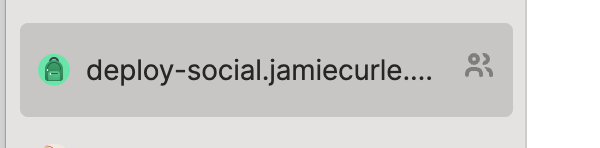
In your 1Password GUI make a vault and give it a name that screams “this is a deployment”. I like to put “deploy-” as part of the vault name - something like this…
Now in that vault create an item with a field for your secret. Here’s mine and as you can see I’m using a Cloudflare tunnel which is largely irrelevant for you, but what is relevant is the name has no spaces. Spaces always make commands harder than they need to be on a cli …

Command line
Great, you have vault and it has an secret in it, let’s get the command line stuff setup.
You will need the 1Password command line tool installed and configured so that you can run commands. For example, here’s the fake output from a list vault command…
op vaults list

obviously-nvdad4zeyj32n61a6zjkj5yadd fake-vault-name-1
fake-kxmt7p2qrn85w4jf9hcvb6ysae fake-vault-name-2
vault-ztb3m9xwqk61r7jp4ndvf2ysha fake-vault-name-3
ids-grn5k8mxqw24b7yt1jcvhp9faz the-vault-with-secrets-in-I-want-to-deploy
sidenote: if you have more than a single 1Password account on your machine (and you probably will if you have a free family account because you have a teams account) then you need to either pass in --account <the-account-id> as a flag to each command or export OP_ACCOUNT_ID with the correct id.
The service account is one command line call away…
# note the read items permission. I'd stick with that as a
# deployment shouldn't have any reason to write credentials

op service-account create name-of-service-account --expires-in 4w \
--vault the-vault-with-secrets-in-I-want-to-deploy:read_items
You’ll get back your service token…
Service account created successfully!
Service account UUID: NOPE-NOT-SHARING=THAT-HERE
Service account token:
ops_azaskdjaas0-d90-23423kl4i0-sdasjkahjsdkl-etc-etc-etc
That token needs to be accessible on the Docker host as OP_SERVICE_ACCOUNT_TOKEN but I’ll get to that later when we install the op cli on the host.
Risk - experience vs security
If you’re here for “how-to-only” or you love YOLO mode, skip this section.
So now you have your token, great. However, that token needs to be in your environment and I know what you’re thinking, “why not just export everything and be done?” and that’s a great question. The answer is short. Exporting inside a .bashrc file or similar leaves the credentials lying around. Should your environment get compromised, then all of your secrets are all nicely gift wrapped in plain text. Sadness. Using the approach of having a service account access a vault, reduces that risk because the secrets are only exposed if the vault can be accessed. It doesn’t eliminate the risk, but it is at the very least, a solid control.
But how to get the token into the environment I hear you ask, well you could create a dotfile with tight permissions (chmod 600) and put the token in there and source it. You could run export FOO=bar with a space at the start and if your shell is configured to ignore spaces, then it will not be in your history. But, you will have to export the value each and every time you interact with the service and can you be sure you’ll remember the space. There’s other ways but the short version of this story is: “you do you hun”.
At some point that service account token is living on your machine and like all security, it boils down to risk management which is largely informed by the tradeoff between experience and security.
Re-engage how-to-mode.
The .env file you can commit to a repository
So now we have a vault with an item and a means to access that vault with a service token. Now we need to get the environment for the deployment set up. First a PSA.
Never, ever commit an env file to a repository that contains secrets. If you do, you’re rolling credentials and/or apologising profusely to your ops team and your lead / manager who likely hired you on the grounds that you had learned that lesson.1.
That being said, the benefit of using 1Password (or any secret management tool really) is that you can create .env files you can safely commit into your source code. I like to call them .env-safe files and here’ an example…
export SECRET_A=$(op read op://vault-name/item-name/credential-name)
I cannot overstate the benefits of this. Firstly, if you have a password management system it’s a great way to get the most out of it. Secondly, if you’re a business that has a 1Password business account then this is MUCH, MUCH better way for your engineering teams to have dev credentials in a way that totally aligns with your security controls. If a product manager needs to get a local copy of the product running on their machine to vibe code up an idea, then using 1Password to deploy secrets is a no-brainer. It’s on their machine and it encourages them to use it2. It also means you don’t need to start poking holes in boundaries in RBAC groups or inflating ACL’s because “product manager wants to vibe”. I have nothing against product managers or vibe coding and I’m certainly not using “vibe” as a perjorative.
Once you’ve got your .env-safe file configured you can move on.
OP cli on the Docker machine
Ok, the pain. You need to install the op command line tool on linux but before you do let me make one thing clear - you do not need to login to the op cli like you do for your desktop machine because that’s what the service token is for. I’m running ubuntu on my Pi so I followed the debian/ubuntu instructions and once installed we’re nearly done. You can test it out like this…
op read op://vault/item/value

>> uJhasD19KLnh5asd...
So the only thing left to do is wire in environmental variables into your compose file so they’re injected into your Docker environment. I’m sure you know how to do that, so here’s mine so you have something to reference against but the important thing is that the name of the environmental variable below needs to match the name that you’re exporting on your .env-safe file…
# snippet of compose file
 cloudflared:
    image: cloudflare/cloudflared:latest
    command: tunnel --no-autoupdate run --url http://gotosocial:8080
    environment:
      TUNNEL_TOKEN: ${GS_CLOUDFLARE_TUNNEL_TOKEN}
Now you should be able do something like this…
# load the variables from the vault
source .env-safe

# start the compose service with everything set
docker compose up -d

# or in one fell swoop
source .env-safe && docker stack deploy -c docker-compose.yaml gotosocial --with-registry-auth
Conclusion
And that’s the story of how I rolled out a service account with 1Password command line access into my Docker swarm.
I really do think this is a massively underused side of a 1Password account. Most of my tech leadery / executive friends didn’t know this was a thing. When I explained how in effect that .env-safe trick turns a series of problems (many engineers dev env setup consistency, tight yet joyful security controls and 1Password adoption) into wins I could see the light go off in their eyes.
It’s not perfect, but for me it’s a lovely solution to two very real and important problems – secret management and joy in the job.